Back to website
Login
Home
Login
Back to website
There was a problem loading the comments.
How to update the email address of a Scheduled Task in Plesk?
Support Portal
»
Knowledgebase
» Viewing Article
Print
11/12/2020 11:36 AM
Follow this tutorial to update the email address of Scheduled Tasks (Cron Jobs) in Plesk.
1.
Log in to your Plesk account. (e.g.,
https://example.com:8443
)
2.
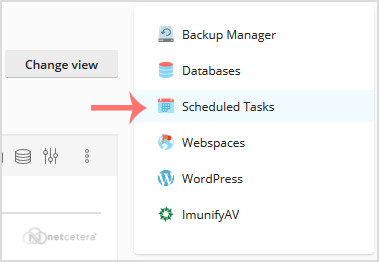
In the right-hand sidebar, click on
Scheduled Tasks
.
3.
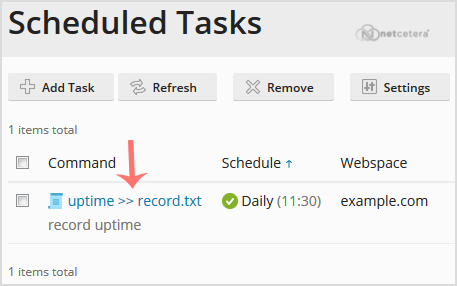
Under the
Command
text, locate your task and click on it.
4.
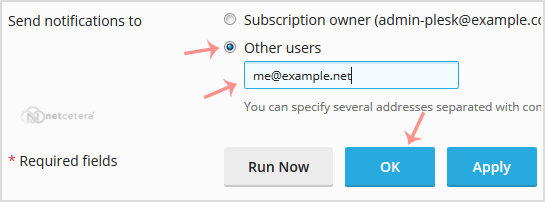
Scroll down to the Send notifications, choose
other users
, and then enter your email address in the email field.
5
. Click
Ok
.
Share via
Related Articles
How to Update the Email Address of a Scheduled Task in Plesk
How to Update a Plesk Account's Email Address
How to Create Scheduled Tasks in Plesk
Categories
13
Accounts and Billing
17
WordPress
4
Cloud Web Hosting
6
DNS - Nameservers
3
Dedicated/VPS Servers
21
Domain Names
6
Email
5
— Thunderbird
14
Email Client
3
— Mozilla Thunderbird
4
— Outlook 2019
5
— Outlook 2021
5
FTP
5
— FileZilla Client
5
Mobile
3
— Android
2
— iOS/Apple
1
Others
3
Others
7
PayPal
41
Plesk
41
— Plesk
4
—— Backup/Restore
5
—— Databases
7
—— Domain Management
5
—— Email
4
—— FTP
14
—— General (Plesk)
4
Security
6
Security
Tags
.eu domains
.UK Domains
60 day lock
add funds
ASP.NET
auto-renewal
bank transfer
billing contacts
cancel
cancellation
catchall
contact billing
credit card
direct debit
disable
dns
domain
domain name prices
domain registrant
Domain Transfers
domains
email forwarding
forward
IPSTAG
ispapi
Let's Encrypt
MVC / CORE
NETC
Nominet
plesk
Plesk login
postal invoices
RDP
refund
Registrant Email Verification
Remote Desktop Manager
renew
renewal
reseller
SSH
SSH Key
ssl
SSL Certificate
TAG
Transfer
transfer domain
web-forwarding
whmcs
whois protection
© Netcetera
English